User Guide
AgentSee is a desktop application for property agents to manage clients. It is optimized for use via a Command Line Interface (CLI) while still having the benefits of a Graphical User Interface (GUI). It is easy to use, and free!
- Quick start
-
Features
- General commands
- Buyer-specific commands
- Seller-specific commands
- Saving the data
- Editing the data file (For experienced users)
- FAQ
- Command summary
Quick start
-
Ensure you have Java
11or above installed in your Computer. If you do not have it installed, download it here. -
Download the latest application .jar file from our GitHub here.
-
Copy the .jar file to any folder which you wish to store the AgentSee application in. It is recommended that the folder is empty before copying in the .jar file.
-
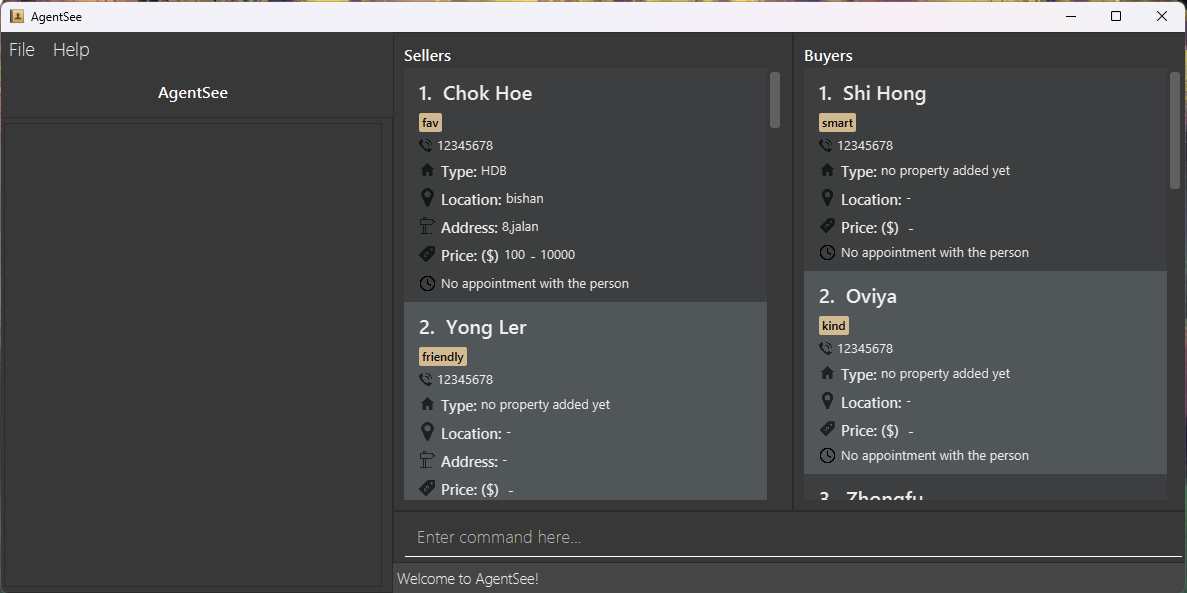
Double-click the file to start the app. A GUI similar to the one below should appear in a few seconds. Note that sample data will be automatically added when running the .jar file for the first time.
- Input a command in the command box and press Enter on your keyboard to execute it.
- E.g.
add-b n/David p/62353535
- E.g.
- Refer to the Features section further below for full details of possible commands to input.
Features
The Features section will be split into 3 subsections for:
- General commands
- Buyer-specific commands
- Seller-specific commands
 Notes about the command format and terminology:
-
Buyer: Someone who is seeking to purchase property.
-
Seller: Someone who is seeking to sell their property.
-
Leading zeros will be ignored in index-based inputs. E.g.
delete-b 1anddelete-b 00001are equivalent. -
Words in
UPPER_CASEare inputs to be supplied by the user.
e.g. Inadd-b n/NAME,NAMEis an input such asadd-b n/Chok Hoe. -
Items in square brackets are optional inputs.
e.g Inn/NAME [t/TAG], the user can inputn/Chok Hoe t/funnyor simplyn/Chok Hoe. -
Inputs with
… after them can be used more than once.
e.g. In[t/TAG]…, the user can inputt/friendort/friend t/familyetc. -
Input can be in any order.
e.g. Even if the command specifiesn/NAME p/PHONE_NUMBERin the documentation,p/PHONE_NUMBER n/NAMEis also acceptable. -
If an input is expected only once in the command, but you specified it multiple times, only the last occurrence of the input will be taken.
e.g. If you specifyadd-b n/Chok Hoe p/12341234 p/56785678, onlyp/56785678will be taken. -
If an input type not specified for a command is used E.g.
pr/inadd-b, it will be treated as part of the preceding input. E.g.add-b n/David pr/1,2 Gareth p/12345will seeNAMEasDavid pr/1,2 Gareth, which is invalid. -
Respect the spacing used in all command formats. E.g.
add-b n/Chok Hoep/12345 p/123467will treatNAMEasChok Hoep/12345, which is invalid. -
Additional input for single-word commands (such as
help,list-s,exitandclear-b) will be ignored and the application will continue executing the command.
e.g. If the input specifieshelp 123, it will be interpreted ashelp. -
Property refers to different things dependent on whether it is used under a Buyer-specific or Seller-specific command.
- For Buyer-specific commands, it refers to the general property they are looking to buy. E.g. “A HDB in Serangoon for $500,000 to $600,000”.
- For Seller-specific commands, it refers to the exact property they are looking to sell. E.g. “A HDB at Blk 333, Kent Ridge Drive #03-3333 for $700,000 to $710,000”.
- Both property types include a Location, Price range and House type. E.g. In the 1st example, HDB is the house type, Serangoon is the location, and $500,000 to $600,000 (inclusive) is the price range.
- However, Seller-specific property has an Address defining the exact address their property is located. E.g. In the 2nd example, address is Blk 333, Kent Ridge Drive #03-3333.
- To learn more about formatting your property inputs see below. To see more requirements for inputs, refer to
add-ptbandadd-ptscommands.
- Formatting your Property inputs:
-
House type can be inputted as any of the following (case-insensitive):
-
Unspecified:
unspecifiedorany -
Apartment:
apartment -
Bungalow:
bungalow -
Condominium:
condominiumorcondo -
Colonia:
colonia -
HDB:
hdborhdb_flat -
Semi-detached:
semi-detachedorsemi-dorsemidetachedorsemid -
Mansion:
mansion- Any other house type is not accepted.
-
Unspecified:
-
Location & Address must be non-empty, and can contain alphabets, numerics and special symbols. E.g.
Kent Ridge 1/2.- However, inputs like
l/Bishan h/hdbwill be treated asl/Bishan&h/hdb(see above). - Typing
l/Bishanh/abcpr/0,2is still acceptable and will treatBishanh/abcpr/0,2as the location input.
- However, inputs like
- Location will be converted to lower case.
-
Price range must be in a
lower,upperformat. E.g.1000,2000
-
House type can be inputted as any of the following (case-insensitive):
- The displayed seller list & displayed buyer list are the sellers and buyers shown on the UI of the application respectively. They do not refer to the entire list of buyers & sellers.
- If we do refer to the whole list of buyers or sellers, we will just use buyer list or seller list respectively.
General commands
Help! help
Function: Show a message explaining how to access the help page.

Format: help
Exiting. exit
Function: Exit the program. Don’t worry, we will save your data!
Format: exit
Clear. clear-all
Function: Clears both buyer and seller lists.
 Caution: This action cannot be undone! Be careful when changing a buyer’s information.
Format: clear-all
Buyer-specific commands
Listing buyers. list-b
Function: Display the buyer list.
Format: list-b
Adding buyers. add-b
Function: Add a buyer to the buyer list. This is essential for you to add a buyer’s data.
Format: add-b n/NAME p/PHONE_NUMBER [t/TAG]...
- The order of inputs can be in any order.
- The
NAME,PHONE_NUMBERandTAGcannot be empty. E.g.n/orn/followed by only spaces or tabs. -
NAMEshould only contain alphanumeric characters. E.g.John 1orJohn 2if you are using numbers to differentiate buyers with the same name. -
NAMEcannot be repeated for different buyers. E.g.John&John. However, we allow for different cases. E.g.John&john. -
PHONE_NUMBERcan only contain non-negative, non-spaced whole numbers E.g.1234,0000(zero) and must be at least 3 digits long E.g.001is accepted but01or0 01is not. - Multiple different buyers or sellers might have the same phone number. E.g. Buyer
John, BuyerBoband SellerJesshave phone number62353535. This is because the phone number might be a home number/office number which multiple clients can share. - When a buyer is initially added, they will default to having no Property. Use
add-ptbto add a respective property. -
TAGmust be alphanumeric with no spaces between the words. E.g.greatis ok butgreat clientis not. - If there are leading or trailing whitespace for
NAME,PHONE_NUMBERorTAG, it will be ignored. E.g.____David_____where_is whitespace isDavid. - If multiple inputs are provided for the same field E.g.
n/David n/#seeme, only the last input will be processed. Hence, in the example, an error will be thrown since#seemeis invalidNAME. This applies top/PHONEas well
Examples:
-
add-b n/Yu Qi p/98765432adds a new buyer with nameYu Qiand phone number98765432 -
add-b n/Janald p/12345678 t/friend t/criminaladds a new buyer with nameJanald, phone number of12345678, and tags offriendandcriminal
Adding a property to buy. add-ptb
Function: Add a new property for the specified buyer. Add all the conditions of a property that your buyer is interested in!
Format: add-ptb INDEX l/LOCATION pr/PRICE_RANGE h/HOUSE_TYPE
- Adds a new property that the buyer at
INDEXis hoping to buy. The index refers to the index number shown in the displayed buyer list. The index must be a positive integer 1, 2, 3, … within the size of the displayed buyer list. - The order of the inputs can be in any order.
- The
PRICE_RANGEmust be a valid non-negative integer withlowerbeing less than or equal toupper. - The
PRICE_RANGEcan include0since the buyer might want to try their luck and see if anyone is selling their property for free. - Do use appropriate
LOCATIONfor your own utility. E.g.bishanormarymount. The application will not check if it is an actual location in Singapore or elsewhere. - You cannot add a new property to buy once one has already been added.
- If there are leading or trailing whitespace for
LOCATION,PRICE_RANGEorHOUSE_TYPE, it will be ignored. E.g.____hdb_____where_is whitespace will be treated ashdb. - If there are multiple inputs for the same field, only the last one will be processed. Consequently, if it is invalid, earlier valid inputs will not be chosen. E.g.
h/hdb h/plazais invalid sinceplazais not a recognized house type.
Examples:
-
add-ptb 1 l/Bishan pr/400000,500000 h/hdbmeans that 1st buyer in the displayed buyer list wishes to buy a HDB in bishan for any price from $400,000 to $500,000.
Adding an appointment with buyer. appt-b
Function: Create an appointment with a certain buyer. Now, you can keep track of your appointments with buyers!
Format: appt-b INDEX time/TIME
- Create an appointment with the buyer at the specified
INDEX. The index refers to the index number shown in the displayed buyer list. The index must be a positive integer 1, 2, 3, … within the size of the displayed buyer list. - The input
TIMEis in ayyyy-MM-dd-HH-mmformat of: the year, month, day of the month, hour and minute. Use the example below for reference. - The time entered must be a time in the future.
- To delete an appointment with a buyer, use the keyword
resetafter thetime/prefix. - Multiple clients may have the same appointment
TIME(E.g. Zoom meetings).
Examples:
-
appt-b 1 time/2023-01-01-12-12sets a new appointment for the 1st buyer on the displayed buyer list on 1st January 2023 and 12:12pm. -
appt-b 1 time/resetdeletes the existing appointment with the 1st buyer in the list.
Matching a buyer!
Function: Display potential sellers by matching the demand of a buyer. Now, you can easily find properties that buyers are interested in!
- Note: You can match a buyer only if his/her property has been added!
- Want to match using just a certain criterion? Fret not! Below are the different match commands.
Matching all fields of buyers to sellers. match
Format: match INDEX
- The index refers to the index number shown in the displayed buyer list. The index must be a positive integer 1, 2, 3, … within the size of the displayed buyer list.
- A list of all sellers who have properties that are matching the buyer’s property requirements will be displayed.
- A seller will match to the buyer if:
- They have the same location & house type.
- If a price within the buyer’s price range is within the seller’s price range.
- E.g. If a buyer has house type
HDB, locationBishanand price range400000,500000, a seller with house typeHDB, locationBishanand price range490000,600000will match as the buyer’s price range has an overlap with the seller’s.
Examples:
-
match 1will match the 1st buyer in the displayed buyer list with all seller’s with matching property criteria.
Matching House Types of buyers to sellers. match-h
Format: match-h INDEX
- The index refers to the index number shown in the displayed buyer list. The index must be a positive integer 1, 2, 3, … within the size of the displayed buyer list.
- A list of all sellers whose housetype matches the buyer’s desired house type will be displayed.
- A seller will match to the buyer if:
- They have the same house type.
- Buyer’s house type is unspecified.
- E.g. A buyer with house type
UNSPECIFIEDorHDB_FLATwill match with a seller with house typeHDB_FLAT.
Examples:
-
match-h 1will match the 1st buyer in the displayed buyer list with all seller’s with matching property criteria.
Matching Locations of buyers to sellers. match-l
Format: match-l INDEX
- The index refers to the index number shown in the displayed buyer list. The index must be a positive integer 1, 2, 3, … within the size of the displayed buyer list.
- A list of all sellers whose location matches the buyer’s desired location will be displayed.
- A seller will match to the buyer if:
- They have the same house location
- E.g. A buyer with house location
bishanwill match with a seller with house locationbishan.
Examples:
-
match-l 1will match the 1st buyer in the displayed buyer list with all seller’s with matching property criteria.
Matching Price Range of buyers to sellers. match-pr
Format: match-pr INDEX
- The index refers to the index number shown in the displayed buyer list. The index must be a positive integer 1, 2, 3, … within the size of the displayed buyer list.
- A list of all sellers whose price range matches the buyer’s desired price range will be displayed.
- A seller will match to the buyer if:
- There is a price at which the buyer is willing to buy a property at, and the seller is willing to sell their property at.
- E.g. A buyer with price range
20-100will match with a seller with house price range100-200, because100is a matching price. - Price matches are inclusive, so if a price range is
100-200, it includes the values100and200as well.
Examples:
-
match-pr 1will match the 1st buyer in the displayed buyer list with all seller’s with matching property criteria.
Editing a buyer. edit-b
Function: Edit an existing buyer’s information in the displayed buyer list.
Caution: This action cannot be undone! Be careful when changing a buyer’s information.
Format: edit-b INDEX [n/NAME] [p/PHONE] [t/TAG]… [h/HOUSE_TYPE] [l/LOCATION] [pr/PRICE_RANGE]
- Edit the buyer at the specified
INDEX. The index refers to the index number shown in the displayed buyer list. The index must be a positive integer 1, 2, 3, … within the size of the displayed buyer list. - At least one of the optional inputs must be provided.
- The order of the inputs can be in any order.
- Existing values will be updated to the input values.
- When editing tags, all the existing tags of the buyer will be removed, and replaced with the specified tags in the input. Hence, you can remove all the buyer’s tags by typing
t/without specifying any tags after it. - The house-related inputs (
pr/,l/,h/) cannot be edited until a Property is added (See how to add one here). - Appointment cannot be edited! You can reset and add another appointment with the
appt-bcommands.
Examples:
-
edit-b 1 n/ChuaEdits only the name of the 1st buyer in displayed buyer list to beChua. -
edit-b 2 n/Betsy Crower t/Edits the name of the 2nd buyer in displayed buyer list to beBetsy Crowerand clears all existing tags.
Finding a buyer. find-b
Function: Find buyers whose selected field contain any of the given keywords. Use this so that you can find your buyer’s information more easily!
Format: find-b field/KEYWORD1 [MORE_KEYWORDS]
- The fields are:
- name
n/ - phone
p/ - location
l/ - tags
t/ - house type
h/
- name
- The search is case-insensitive. E.g
find-b n/hanswill match buyers withHansandHanSin their name. - The order of the keywords does not matter. e.g.
find-b n/Hans Bois equivalent tofind-b n/Bo Hans. - All partial words will be matched e.g.
Hankeyword will matchHansandHan. - However, if the keyword is larger than the item itself, it will not match e.g.
Hanskeyword will not matchHanin name - Buyers matching at least one keyword will be returned (i.e.
ORsearch). e.g.Hans Bowill returnHans Gruber,Bo Yang - find-b/s will shorten the current list to the filtered list. To show the full list again, type the corresponding list command i.e. list-b/s
Examples:
-
find-b n/Johndisplays buyers whose names arejohnandJohn Doe.
Deleting a buyer. delete-b
Function: Delete the specified buyer from the displayed buyer list.
Caution: This action cannot be undone!
Format: delete-b INDEX
- Deletes the buyer at the specified
INDEX. The index refers to the index number shown in the displayed buyer list. The index must be a positive integer 1, 2, 3, … within the size of the displayed buyer list. - The displayed list refers to the buyer list shown after a
list-b,sort-borfind-bwas previously executed.
Examples:
-
list-bfollowed bydelete-b 2deletes the 2nd buyer in the buyer list. -
find-b Betsyfollowed bydelete-b 1deletes the 1st buyer in the result of thefind-bcommand.
Clearing buyer list. clear-b
Function: Clear all buyers from the buyer list.
WARNING: This action clears your entire list and it cannot be undone. Take extra caution before doing this!
Format: clear-b
Sorting buyers. sort-b
Function: Sort all the buyers according to the orders specified.
Format: sort-b by/COMPAREDITEM o/ORDER
- The
COMPAREDITEMare:timename
- The
ORDERare:ascdesc
- All entries are compulsory
- When there’s no appointment with certain buyers, those buyers will be put at the bottom of the list, regardless of the sorting order, and only buyers with an appointment time will be sorted.
Examples:
sort-b by/time o/ascsort-b by/name o/desc
Seller-specific commands
Listing sellers. list-s
Function: Display the seller list.
Format: list-s
Adding sellers. add-s
Function: Add a seller to the seller list. This is essential for you to add a seller’s data.
Format: add-s n/NAME p/PHONE_NUMBER [t/TAG]...
- The order of inputs can be in any order.
- The
NAME,PHONE_NUMBERandTAGcannot be empty. E.g.n/orn/followed by only spaces or tabs. -
NAMEshould only contain alphanumeric characters. E.g.John 1orJohn 2if you are using numbers to differentiate sellers with the same name. -
NAMEcannot be repeated for different sellers. E.g.John&John. However, we allow for different cases. E.g.John&john. -
PHONE_NUMBERcan only contain non-negative, non-spaced whole numbers E.g.1234,0000(zero) and must be at least 3 digits long E.g.001is accepted but01or0 01is not. - Multiple different buyers or sellers might have the same phone number. E.g. Buyer
John, BuyerBoband SellerJesshave phone number62353535. This is because the phone number might be a home number/office number which multiple clients can share. - When a seller is initially added, they will default to having no Property. Use
add-ptsto add a respective property. -
TAGmust be alphanumeric with no spaces between the words. E.g.greatis ok butgreat clientis not. - If there are leading or trailing whitespace for
NAME,PHONE_NUMBERorTAG, it will be ignored. E.g.____David_____where_is whitespace isDavid. - If multiple inputs are provided for the same field E.g.
n/David n/#seeme, only the last input will be processed. Hence, in the example, an error will be thrown since#seemeis invalidNAME. This applies top/PHONEas well
Examples:
-
add-s n/Yu Qi p/98765432adds a new seller with nameYu Qiand phone number98765432 -
add-s n/Janald p/12345678 t/friend t/criminaladds a new seller with nameJanald, phone number of12345678, and tags offriendandcriminal
Adding a property to sell add-pts
Function: Add a new property for the specified seller.
Note: add-ptb and add-pts have different fields!
-
add-ptshas an additionala/ADDRESSfield. -
A seller has the specific address of the property is selling while a buyer may not!
Format: add-pts INDEX l/LOCATION pr/PRICE_RANGE h/HOUSE_TYPE a/ADDRESS
- Adds a new property that the seller at
INDEXis hoping to sell. The index refers to the index number shown in the displayed seller list. The index must be a positive integer 1, 2, 3, … within the size of the displayed seller list. - The order of the inputs can be in any order.
- The
PRICE_RANGEmust be a valid non-negative integer withlowerbeing less than or equal toupper. - The
PRICE_RANGEcan include0since the seller might be generous and give their house away for free. - Do use appropriate
LOCATIONfor your own utility. E.g.bishanormarymount. The application will not check if it is an actual location in Singapore or elsewhere. - Do use appropriate
ADDRESSto maximize your own utility. E.g.Blk 343, Ajax Ave 1121. The application will not check if it is an actual location in Singapore or elsewhere. - The application will not check if the
LOCATIONactually contains a property with the givenADDRESS. It is up to your due diligence to ensureADDRESSis atLOCATIONstated. - It is possible for multiple different sellers to sell same
ADDRESSproperties. This is for cases that you are storing information about separate residents of the property. - Similarly, it is possible for sellers with the same
ADDRESSto have differentLOCATION,PRICE_RANGE&HOUSE_TYPEsince they might each have their own perspectives of where each property resides, its type, or what its worth. - You cannot add a new property to sell once one has already been added.
- If there are leading or trailing whitespace for
LOCATION,PRICE_RANGE,HOUSE_TYPEorADDRESS, it will be ignored. E.g.____Colonia_____where_is whitespace isColonia. -
If there are multiple inputs for the same field, only the last one will be processed. Consequently, if it is invalid, earlier valid inputs will not be chosen. E.g.
h/hdb h/plazais invalid sinceplazais not a recognized house type.Examples:
-
add-pts 1 l/Ajax pr/800000,900000 h/condo a/Ajax Ave 1, 02-100means that 1st seller in the displayed seller list wishes to sell a condominium in ajax at Ajax Ave 1, 02-100 for any price from $800,000 to $900,000.
Adding an appointment with seller. appt-s
Function: Create an appointment with a certain seller. Now, you can keep track of your appointments with sellers!.
Format: appt-s INDEX time/TIME
- Create an appointment with the seller at the specified
INDEX. The index refers to the index number shown in the displayed seller list. The index must be a positive integer 1, 2, 3, … within the size of the displayed seller list. - The input
TIMEis in ayyyy-MM-dd-HH-mmformat of: the year, month, day of the month, hour and minute. Use the example below for reference. - The time entered must be a time in the future.
- To delete an appointment with a seller, use the keyword
resetafter thetime/prefix. - Multiple clients may have the same appointment
TIME(E.g. Zoom meetings).
Examples:
-
appt-s 1 time/2023-01-01-12-12sets a new appointment for the 1st seller on the displayed seller list on 1st January 2023 and 12:12pm. -
appt-s 1 time/resetdeletes the existing appointment with the 1st seller in the list.
Editing a seller. edit-s
Function: Edit an existing seller’s information in the displayed seller list.
Caution: This action cannot be undone! Be careful when changing your seller’s information.
Format: edit-s INDEX [n/NAME] [p/PHONE] [t/TAG]… [h/HOUSE_TYPE] [l/LOCATION] [pr/PRICE_RANGE] [a/ADDRESS]
- Edit the seller at the specified
INDEX. The index refers to the index number shown in the displayed seller list. The index must be a positive integer 1, 2, 3, … within the size of the displayed seller list. - At least one of the optional inputs must be provided.
- The order of the inputs can be in any order.
- Existing values will be updated to the input values.
- When editing tags, all the existing tags of the seller will be removed, and replaced with the specified tags in the input. Hence, you can remove all the seller’s tags by typing
t/without specifying any tags after it. - The house-related inputs (
pr/,l/,h/,a/) cannot be edited until a Property is added (See how to add one here). - Appointment cannot be edited! You can reset and add another appointment with the
appt-scommands.
Examples:
-
edit-s 1 n/ChuaEdits only the name of the 1st seller on displayed seller list to beChua. -
edit-s 2 n/Betsy Crower t/Edits the name of the 2nd seller on displayed seller list to beBetsy Crowerand clears all existing tags.
Finding a seller. find-s
Function: Find sellers whose selected field contain any of the given keywords. Use this so that you can find your seller’s information more easily!
Format: find-s field/KEYWORD1 [MORE_KEYWORDS]
- The fields are:
- name
n/ - phone
p/ - location
l/ - tags
t/ - house type
h/
- name
- The search is case-insensitive. E.g
find-s n/hanswill match sellers withHansandHanSin their name. - The order of the keywords does not matter. e.g.
find-bs n/Hans Bois equivalent tofind-s n/Bo Hans. - All partial words will be matched e.g.
Hankeyword will matchHansandHan. - However, if the keyword is larger than the item itself, it will not match e.g.
Hanskeyword will not matchHanin name - Sellers matching at least one keyword will be returned (i.e.
ORsearch). e.g.Hans Bowill returnHans Gruber,Bo Yang
Examples:
-
find-s n/Johndisplays seller whose names arejohnandJohn Doe.
Deleting a seller. delete-s
Function: Delete the specified seller from the displayed seller list.
Caution: This action cannot be undone!
Format: delete-s INDEX
- Deletes the seller at the specified
INDEX. The index refers to the index number shown in the displayed seller list. The index must be a positive integer 1, 2, 3, … within the size of the displayed seller list. - The displayed list refers to the seller list shown after a
list-s,sort-sorfind-swas previously executed.
Examples:
-
list-sfollowed bydelete-s 2deletes the 2nd seller in the seller list. -
find-s Betsyfollowed bydelete-s 1deletes the 1st seller in the result of thefind-scommand.
Clearing seller list. clear-s
Function: Clear all sellers from the seller list.
WARNING: This action clears your entire list and it cannot be undone. Take extra caution before doing this!
Format: clear-s
Sorting sellers. sort-s
Function: Sort all the sellers according to the orders specified.
Format: sort-s by/COMPAREDITEM o/ORDER
- The
COMPAREDITEMare:timename
- The
ORDERare:ascdesc
- All entries are compulsory
- When there’s no appointment with certain sellers, those sellers
- will be put at the bottom of the list, regardless of the sorting order, and only sellers with an appointment time will be sorted.
Examples:
sort-s by/time o/ascsort-s by/name o/desc
Saving the data
AgentSee data are saved in the hard disk automatically after any command that changes the data. There is no need to save manually.
Editing the data file (For experienced users)
AgentSee data is saved as a JSON file [JAR file location]/data/buyeraddressbook.json and [JAR file location]/data/selleraddressbook.json.
Advanced users are welcome to update data directly by editing these data files.
 Caution:
If your changes to the data file makes its format invalid, AgentSee will discard all data and start with an empty data file at the next run!
So if you are afraid of losing all the data, please backup your data files somewhere else before attempting to edit the data file by yourself!
Caution:
If your changes to the data file makes its format invalid, AgentSee will discard all data and start with an empty data file at the next run!
So if you are afraid of losing all the data, please backup your data files somewhere else before attempting to edit the data file by yourself!
JSON format of the data
Below is the example of 2 buyers that are saved under buyeraddressbook.json :
{
  "buyers" : [ {
    "name" : "Shi Hong",
    "phone" : "12345678",
    "appointment" : "2022-03-31-17-00",
    "tagged" : [ "smart" ],
    "propertyToBuy" : {
      "house" : {
        "houseType" : "Bungalow",
        "location" : "clementi"
      },
      "priceRange" : {
        "lower" : "500000",
        "upper" : "600000"
      }
    }
  }, {
    "name" : "Jun Hong",
    "phone" : "87654321",
    "appointment" : "",
    "tagged" : [ "kind" ],
    "propertyToBuy" : null
  }
}
And here are the examples of 2 sellers, one has a property and one does not have a property yet.
{
  "sellers" : [ {
    "name" : "chua",
    "phone" : "1234",
    "appointment" : "",
    "tagged" : [ "tag1", "tag2" ],
    "propertyToSell" : {
      "house" : {
        "houseType" : "Bungalow",
        "location" : "queens town"
      },
      "priceRange" : {
        "lower" : "24",
        "upper" : "48"
      },
      "address" : "Utown"
    }
  }, {
    "name" : "Ben Leong",
    "phone" : "87654321",
    "appointment" : "",
    "tagged" : [ "friendly" ],
    "propertyToSell" : null
  }
}
Some special format of the data
Name and Phone
- They cannot be an empty string:
"", otherwise, it will be seen as invalid format and the buyerbook’s data will become empty! -
phonebe digits string and must have more than 3 digits.
Appointment
- The
appointmentfield should be either""or"Year-Month-Day-Hour-Minute"format, no other format is acceptable.""is when the appoinment date is not specified yet - When specifying the Month and Day, the data should be specified in exactly 2 digits, i.e. you need to pad 0 for 1 digit date or month.
Tag
- empty tag should be
[]
PropertyToBuy
- empty property must be
null, not"null"or'null' - for the
housetypeunderhouse, the housetype provided must be one of the defined house types. Otherwise, all other value will be translated toUnspecifiedhousetype! - Currently, the
housetypecannot putnullinside it, otherwise the program cannot run (We will solve it in v1.4!) -
pricerangemust be a digit string, andlowervalue must be less than or equal toupper
FAQ
Q: How do I transfer my data to another Computer?
A: Install the app in the other computer and overwrite the empty data file it creates with the file that contains the json data in your previous AgentSee home folder.
Q: How do I edit a property to buy of a buyer or seller?
A: You may use the edit-b or edit-s command to edit their fields respectively.
Q: Will me data be saved if I exit the application?
A: Don’t worry! Your data will be automatically saved everytime it is updated. Feel free to type exit to exit the program.
Q: Why does long text hide the labels and text?
A: The text is hidden as it is too long. We will have plans in the future to restrict the length of text fields.
Q Why does my house type on UI not match the one I just entered, even though it’s correct?
A Certain inputs like MaNsIoN are also accepted, but are not visually appealing, hence, we default each input for a house type to a certain displayed text.
Q Why is add-b n/goutham s/o karthik p/3456789 not accepted in add-b or add-s?
A Our application does not allow non-alphanumeric characters! You can consider using goutham so karthik, or simply goutham son of karthik.
Q My phone number be ridiculously long 238223212393288... even though it’s not possible!
A We do not set a hard limit to the length of your phone number since they can be of different lengths.
Q Why have location and address, aren’t they the same thing?
A Location refers to the area/town/city the property can/does reside in. Address is the exact location. We decided to separate them as it allows you to more easily match properties where the exact address may not necessarily contain the location name. E.g. 36 College Ave E, North Tower can be considered to be in Clementi/Dover/NUS but does not contain the location name.
Q How do I “reset” my property LOCATION if my buyer suddenly has no location preference?
A You can consider typing in a “dummy” location to indicate that the client hadn’t decided yet. For example any.
Q Why does typing delete-b 0 and delete-b 999999 return 2 different error messages even though they are both violating the same condition?
A We check whether you have first inputted a positive integer first. If not, we will throw the error message seen in delete-b 0. If you have typed in a positive integer, but it was larger than the displayed list size, it will inform you to check the range again with the other error message.
Command summary
| Action | Format, Examples |
|---|---|
| Help | help |
| Exit | exit |
| Clear all buyers and sellers | clear-all |
| Match buyer by all fields |
match INDEX e.g., match 1
|
| Match buyer by house type |
match-h INDEX e.g., match-h 1
|
| Match buyer by location |
match-l INDEX e.g., match-l 1
|
| Match buyer by price range |
match-pr INDEX e.g., match-pr 1
|
| List Buyers | list-b |
| Add Buyer |
add-b n/NAME p/PHONE_NUMBER [t/TAG]… e.g., add-b n/James Ho p/22224444
|
| Add Buyer Property |
add-ptb l/LOCATION pr/PRICE_RANGE h/HOUSE_TYPE e.g., add-ptb l/Bishan pr/100000,200000 h/hdb
|
| Make Appointment for Buyer |
appt-b INDEX time/TIME e.g., appt-b 1 time/2022-10-10-12-12
|
| Edit Buyer |
edit-b INDEX [n/NAME] [p/PHONE] [t/TAG]… [h/HOUSE_TYPE] [l/LOCATION] [pr/PRICE_RANGE] e.g., edit-b 2 n/James Ho p/22224444
|
| Find Buyer |
find-b field/KEYWORD1 [MORE_KEYWORDS] e.g., find-b n/James Jake
|
| Delete Buyer |
delete-b INDEXe.g., delete-b 3
|
| Clear Buyers | clear-b |
| Sort Buyers |
sort-b [by/COMPAREDITEM] [o/ORDER] e.g., sort-b by/name o/desc
|
| List Sellers | list-s |
| Add Seller |
add-s n/NAME p/PHONE_NUMBER [t/TAG]… e.g., add-s n/James Ho p/22224444
|
| Add Seller Property |
add-pts a/ADDRESS l/LOCATION pr/PRICE_RANGE h/HOUSE_TYPE e.g., add-pts a/Blk 343, Rika Ave 1 #09-1231 l/Bishan pr/100000,200000 h/hdb
|
| Make Appointment for Seller |
appt-s INDEX time/TIME e.g., appt-s 1 time/2022-10-10-12-12
|
| Edit Seller |
edit-s INDEX [n/NAME] [p/PHONE] [t/TAG]… [h/HOUSE_TYPE] [l/LOCATION] [pr/PRICE_RANGE] [a/ADDRESS] e.g., edit-s 2 n/James Ho p/22224444
|
| Find Seller |
find-s field/KEYWORD1 [MORE_KEYWORDS] e.g., find-s n/James Jake
|
| Delete Seller |
delete-s INDEXe.g., delete-s 3
|
| Clear Sellers | clear-s |
| Sort Sellers |
sort-s [by/COMPAREDITEM] [o/ORDER] e.g., sort-s by/time o/asc
|